
How to File on the MSME ODR Portal
- DIC Coimbatore
- How to File on the MSME ODR Portal
About ODR
The Online Dispute Resolution (ODR) portal is a digital platform designed to facilitate the end-to-end resolution of disputes involving Micro and Small Enterprises under the MSMED Act, 2006. It enables filing of applications, issuance of notices, submission of documents, and conduct of conciliation and arbitration proceedings entirely in an online mode. The portal follows the statutory process under Section 18 of the MSMED Act, wherein disputes are first taken up for conciliation and, if unsuccessful, are referred to arbitration in accordance with the Arbitration and Conciliation Act, 1996.
A key feature of the ODR portal is the conduct of virtual hearings, allowing both parties to participate without the need for physical presence. It also provides structured workflows, digital record management, and real-time case tracking, ensuring transparency and efficiency in handling cases. By reducing procedural delays and minimizing physical interactions, the ODR system helps in faster disposal of disputes.
Overall, the ODR portal enhances the functioning of the Micro and Small Enterprises Facilitation Council (MSEFC) by streamlining dispute resolution, reducing pendency, and providing a convenient, transparent, and time-bound mechanism for recovery of dues by MSMEs.
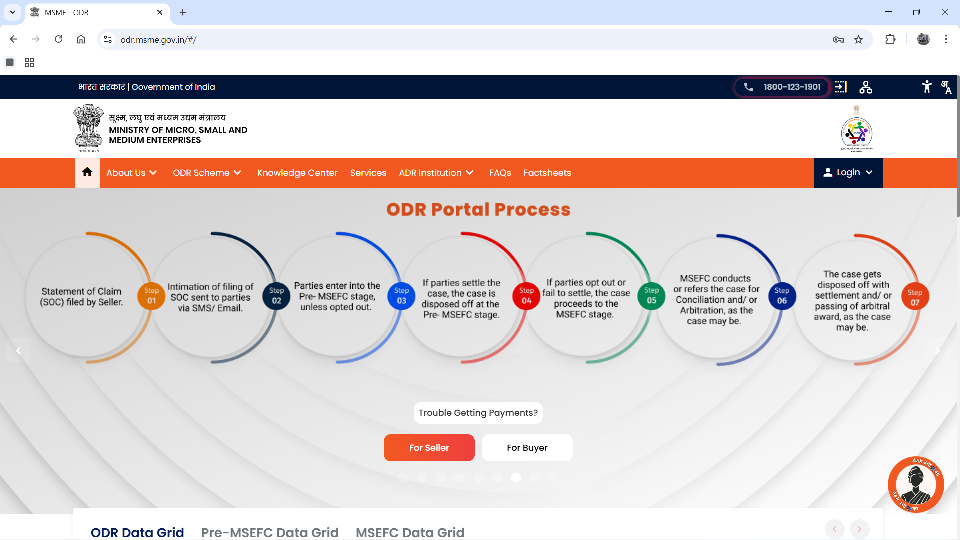
Access the ODR Portal at: https://odr.msme.gov.in/
ODR Activities in MSEFC
Scrutiny & Verification
- Verification of petitions and claims
- Checking invoices and documents
- Identifying discrepancies
- Ensuring completeness of filings
Coordination with Parties
- Communication with petitioners and respondents
- Ensuring timely submissions
- Clarifications and follow-ups
- Smooth information flow
Case Monitoring
- Tracking case progress
- Updating case status
- Ensuring timeline compliance
- Managing conciliation and arbitration stages
Support to Proceedings
- Assisting in virtual hearings
- Supporting Council proceedings
- Handling transition to arbitration
- Issuance of notices
Digital Record Management
- Maintaining case files digitally
- Uploading orders and awards
- Ensuring data accuracy
- Audit-ready documentation
User Support
- Guiding users for proper filing
- Resolving technical issues
- Addressing grievances
- Ensuring smooth portal usage
For Petitioner
About Udyam Registration:
The government has organized a full system of facilitating registration. Process:
- An enterprise for the purpose of this process will be known as ‘Udyam,’ and its Registration Process will be known as ‘Udyam Registration.’
- A permanent registration number will be given after registration
- After completion of the process of registration, a certificate will be issued online
- This certificate will have a dynamic QR Code from which the web page on our Portal and details about the enterprise can be accessed
- There will be no need for renewal of registration. Our single window systems at Champions Control Rooms and at DICs will help you in the process
- The registration process is totally free. No Costs or Fees are to be paid to anyone
- Log in using Udyam Registration Number and Password
- Enter OTP from registered mobile number
- Step 2: Filing the Case
Fill in the petitioner and respondent details correctly as per the generated form. Statement of Claim: Fill in the following details:
- Details of Purchase Order
- Details of Invoices
- Details of the objection by the Respondent given to you
- Select the Points of Determination
- Limitation: Fill in the Limitation column (explain about the period of limitation)
- Territorial Jurisdiction: explain how it comes under Coimbatore. MSEFC
- Cause of Action: mention the date on which the cause of action arose and briefly describe what happened (e.g., non-payment of invoice despite due date)
- Details of Principal Amount Due and Interest: fill up the details correctly as per the invoice
- Relief Sought, e.g., request for recovery of the outstanding amount along with interest under the MSMED Act and any other relief deemed fit by the Council
- Any other relevant information can be filled in.
- Declaration and Verification should be checked
- Necessary documents should be attached
- Step 3: If Engaging an Advocate
If an advocate is representing you, fill in the advocate details column with the following:
- Full Name
- Enrollment Number
- Contact Details
Documents Required for Petitioner
- Affidavit
- Invoices
- Work / Purchase Order
- Udyam Registration Certificate
- Other Documents
Digitally Guided Pathway And Unmanned Negotiation
- Step 3: If Engaging an Advocate
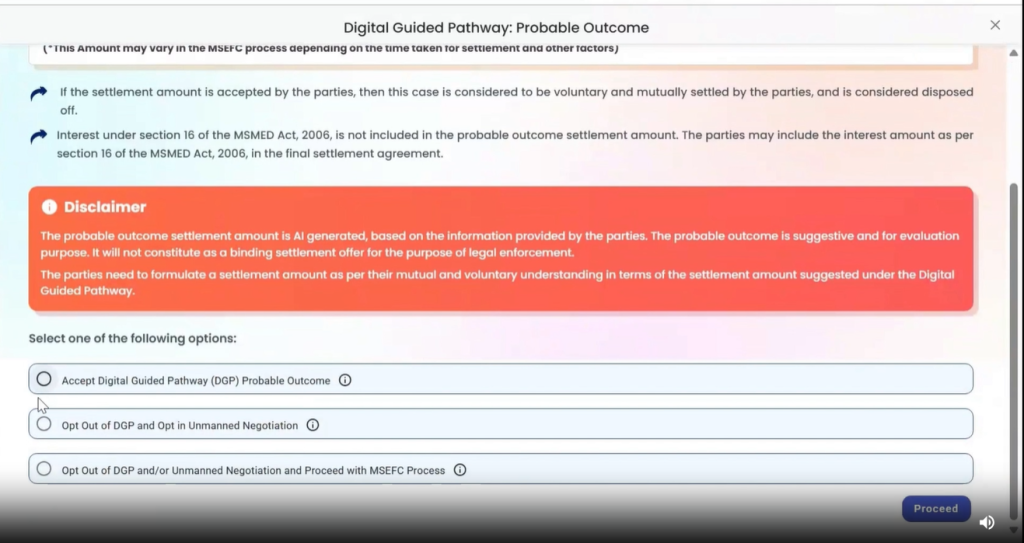
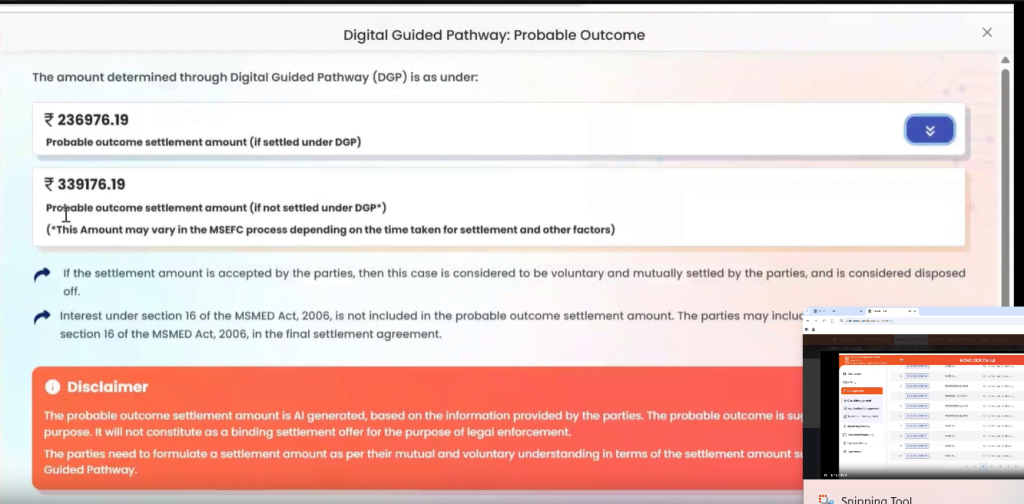
- The system initiates digital conciliation between the parties
- The settlement amount is displayed through the portal
- The Defendant may accept the settlement amount—the matter is closed through a digital Settlement Agreement on the portal
- If the settlement is not accepted, the case moves to the unmanned negotiation stage.
- Stage 2: Unmanned Negotiation
- Parties may negotiate digitally through the portal
- If both parties agree, the case is settled online
- If no settlement is reached, the Petitioner must click “Accept ODR / Refer to MSEFC Council” on the portal; the case is then transferred to the MSEFC Council for further proceedings
- Stage 3: Process After Filing the Case
- If Unmanned Negotiation fails, the Petitioner must refer the case to the MSEFC Council through the portal
- Pay the prescribed MSEFC fees through offline mode
- Submit the case for adjudication under the council.
- The council examines the application and may:
- Approve the case for further proceedings, OR
- Return/Reject the case with objections
- If objections are raised, the claimant must comply and resubmit the required corrections
- Once the case is admitted, notice is served through the portal to both the respondent (Buyer) and the petitioner (MSME seller).
- The Conciliator fixes the date of hearing and adjudication proceedings take place via the ODR portal through Virtual mode
For Respondent (Defendant)
- Step 1: Registration & Login
- Notice is served through SMS / Email / Portal to the respondent.
- Log in to the portal
- Register using mobile number and email ID
- Step 2: If Engaging an Advocate
- If representation is required, the Respondent may engage an advocate.
- Fill in the Advocate details along with a valid enrollment number.
- Step 3: Filing Statement of Defense (SOD) File
Statement of Defense (SOD) within the prescribed time limit. Provide a reply to:
- Purchase Order
- Invoices
- Amount claimed
- Cause of Action mentioned by the Petitioner
- Relief sought by the Petitioner
- Territorial Jurisdiction
- Clearly mention objections, if any
Mandatory Documents for Respondent (SOD Stage)
- Filing of an affidavit is mandatory
- Uploading relevant Invoices is mandatory
- All supporting documents must be properly attached through the portal.
For Further Clarification
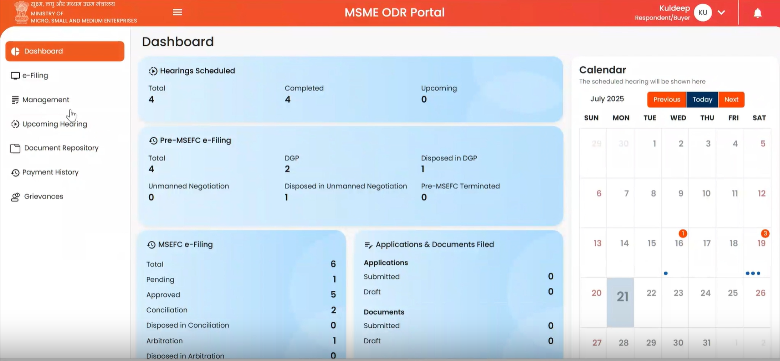
Visit the home page of the ODR Portal, select Knowledge Center, then User Tutorial. Kindly see the video for better clarification.